
How to lookup reverse DNS records
Jump toEvery IP address can have a reverse DNS record (PTR record) that maps the IP address back to a domain name. This is the opposite of a regular DNS lookup, where you look up an IP address for a domain name.
Reverse DNS lookups are commonly used for email server verification, network troubleshooting, and security purposes. When you perform a reverse DNS lookup, you query the PTR record for an IP address to find its canonical hostname.
These reverse DNS records are configured in the Domain Name System (DNS) as PTR records. But how can you look up those reverse DNS records? That depends on the operating system you are using. Windows, Linux and Mac all have a different way of finding the reverse DNS record. The sections below list the instructions for each operating system.
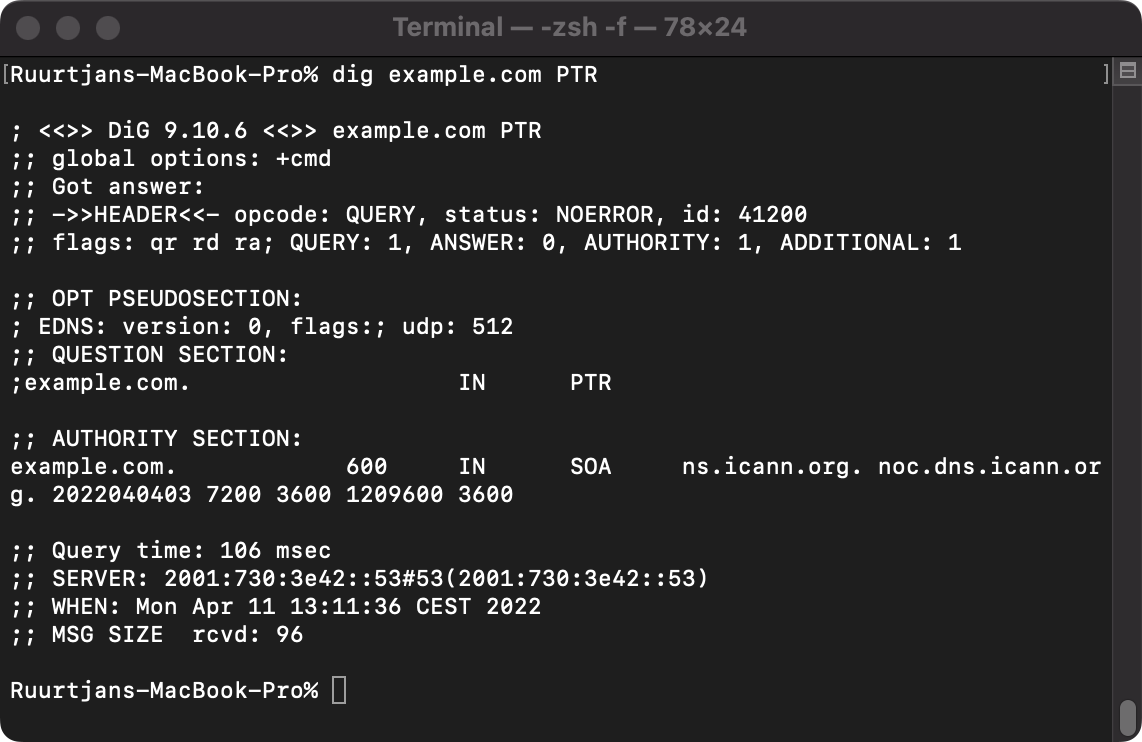
How to lookup reverse DNS records on Windows
To check the reverse DNS record for an IP address on Windows, follow these steps:
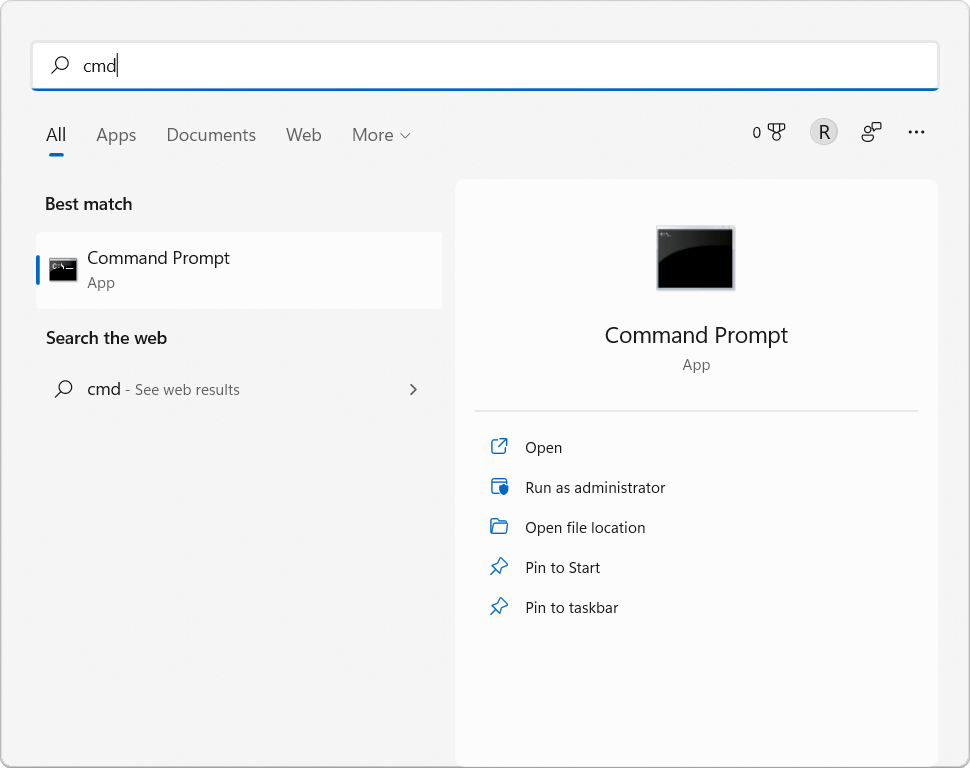
- Open a command prompt by navigating to Start → 'Type here to search' → 'cmd' → Open.
- Type
nslookup -q=PTR 1.1.1.1and hit [enter] to get the reverse DNS record for1.1.1.1.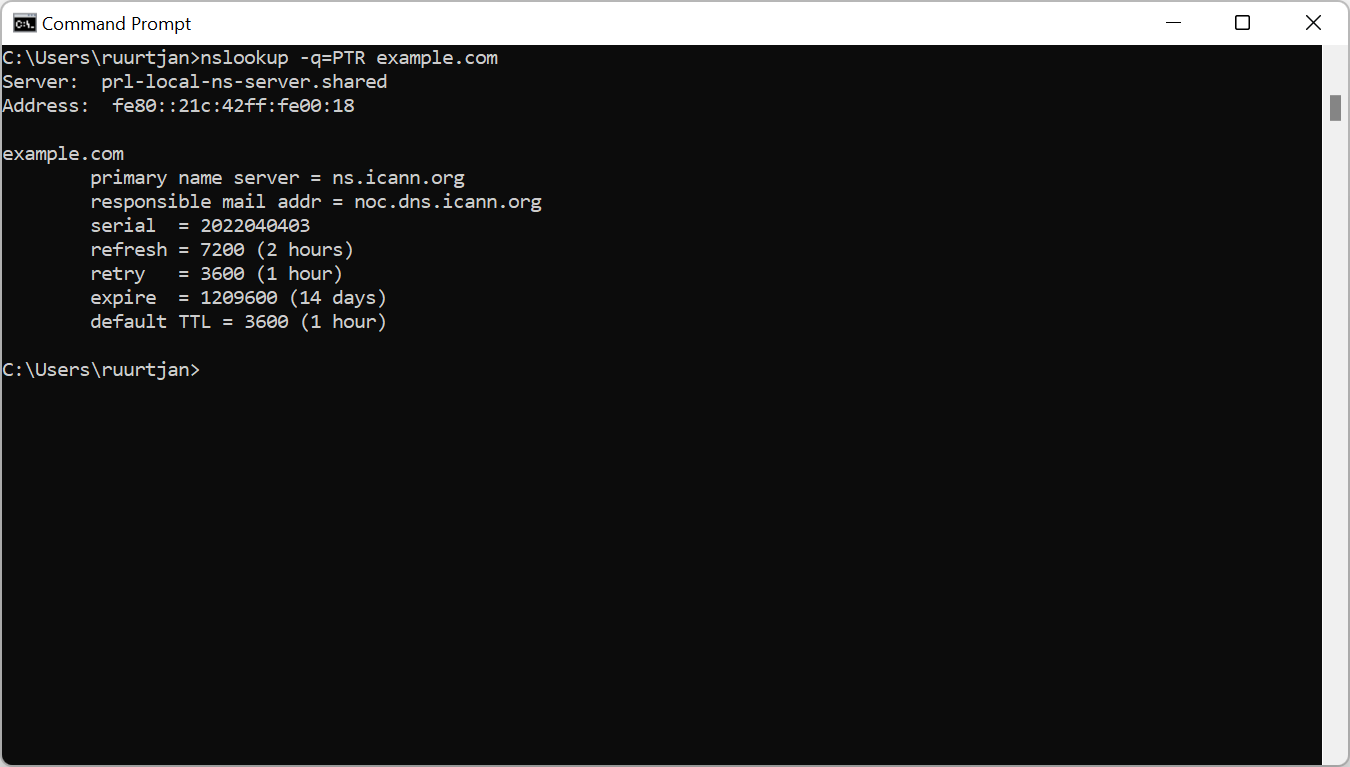
- The reverse DNS record (canonical hostname) is listed below the Non-authoritative answer heading.
How to lookup reverse DNS records on Mac OS
To check the reverse DNS record for an IP address on a Mac, follow these steps:
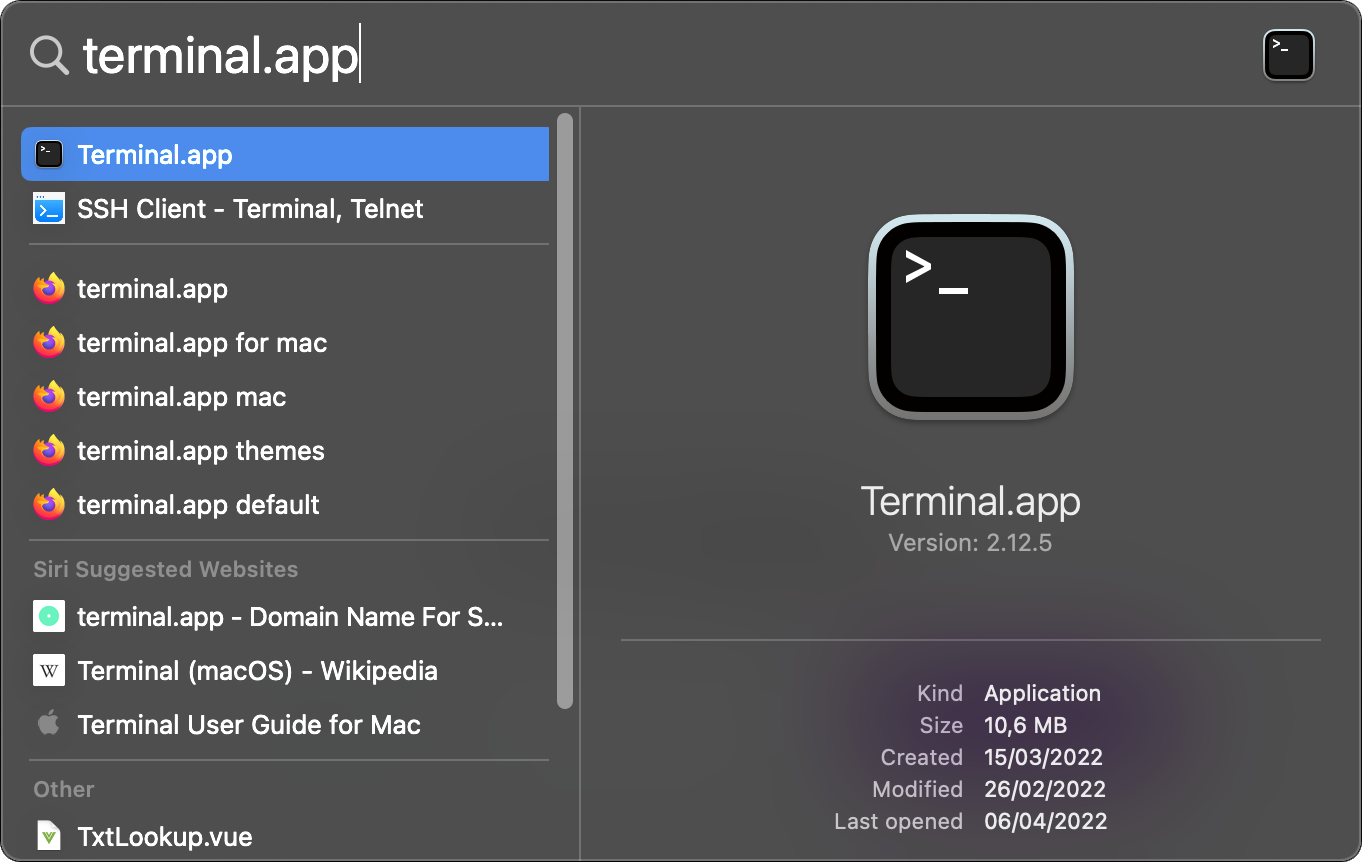
- Open a terminal by entering [command] + [space] → 'terminal.app' → [enter].
- Type
dig -x 1.1.1.1and hit [enter] to get the reverse DNS record for1.1.1.1. - The reverse DNS record is listed below the ANSWER SECTION heading.
How to lookup reverse DNS records on Linux
To check the reverse DNS record for an IP address on Linux, follow these steps:
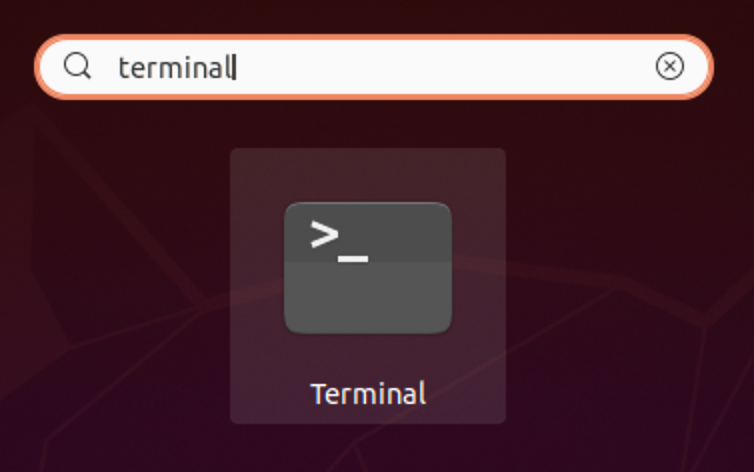
- Open a terminal by entering [Super] → 'terminal' → [enter].
- Type
dig -x 1.1.1.1and hit [enter] to get the reverse DNS record for1.1.1.1.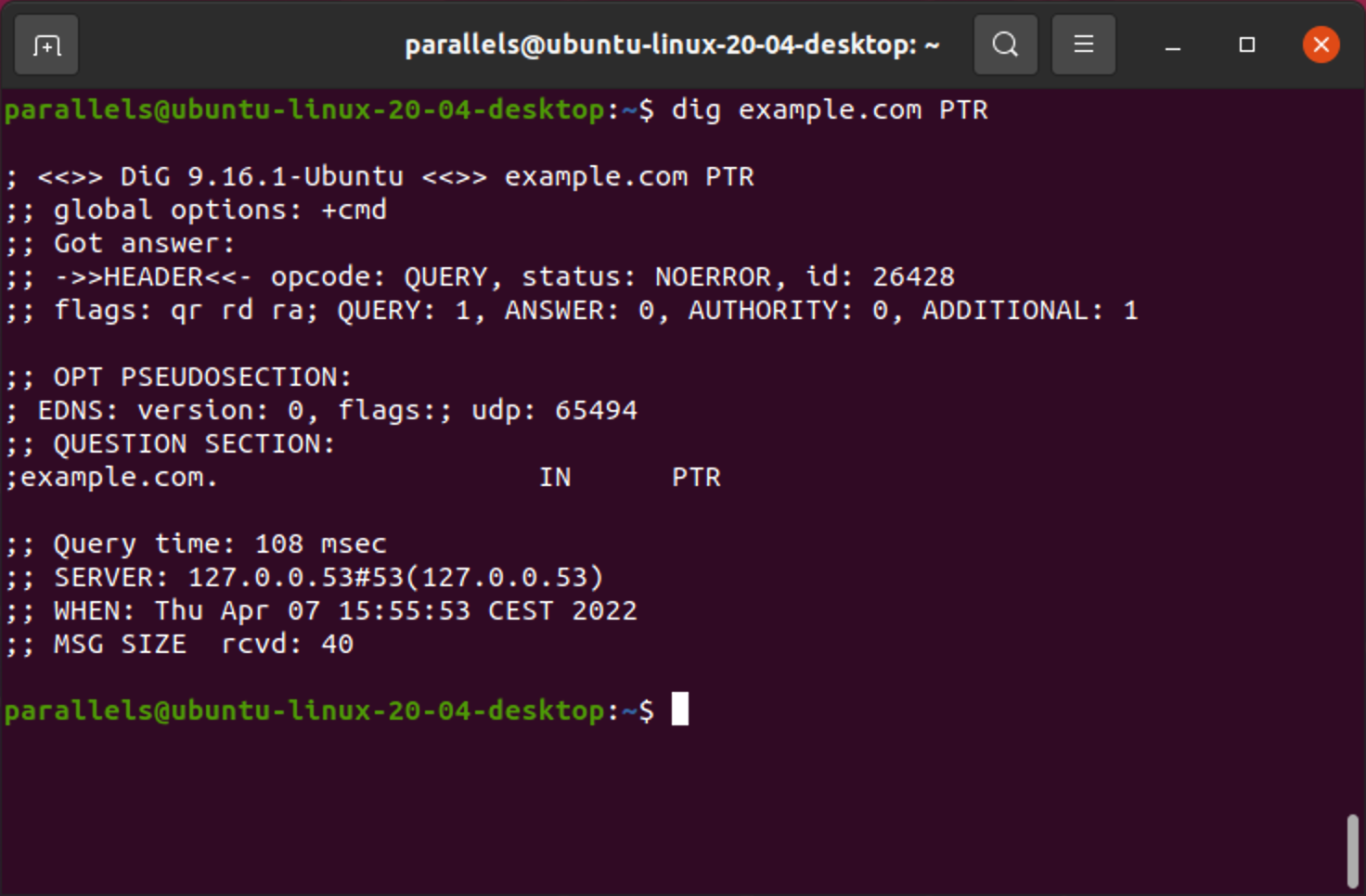
- The reverse DNS record is listed below the ANSWER SECTION heading.